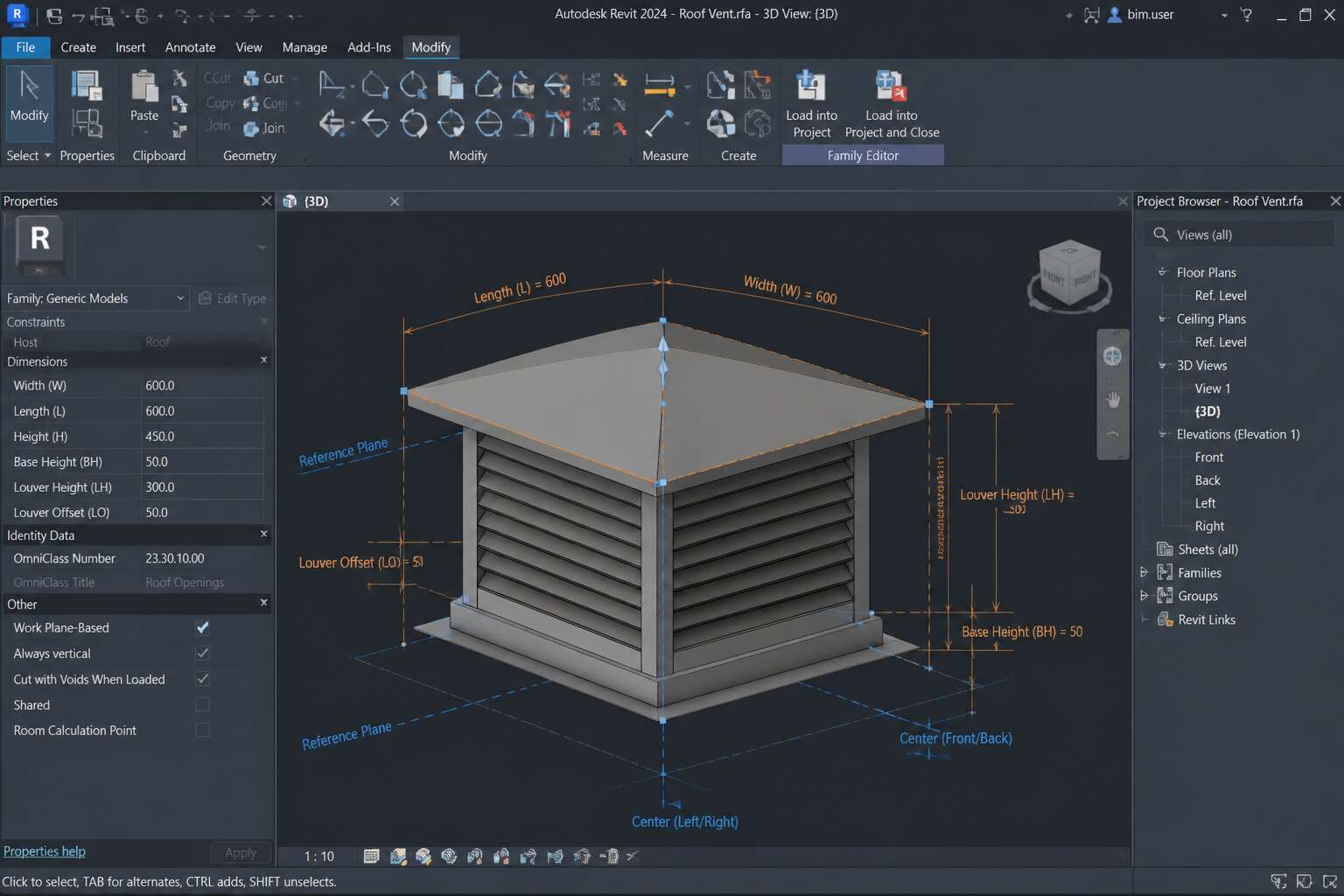
Understanding Roof Vent Families in Revit
Purpose of Roof Vent Families
A single roof vent revit family can carry the weight of an entire ventilation strategy. In Revit, these families are not mere placeholders. They hold parametric intelligence that governs airflow, slope, and material behavior. When you place a roof vent revit family, you are embedding a living dataset into the building model.
The purpose of these families is to bridge design intent with engineering reality. They allow architects to see the roof as a membrane, while mechanical engineers extract precise values for sizing and performance. The family responds to changes in roof thickness, vent angle, and opening area, keeping the model truthful.
- It standardizes vent geometry across projects.
- It automates schedules and quantity takeoffs.
- It maintains coordination between architectural and MEP disciplines.
Without such families, each vent would remain an orphaned shape. The roof vent revit family gives the model its quiet logic.
Key Components and Geometry
Understanding what makes up a roof vent revit family starts with geometry. The base opening defines the airflow area. The collar height controls how the vent sits against the roof pitch. The flange width determines the weatherproofing seal. Each element is driven by parametric dimensions that stay live throughout the project.
I find it helpful to think about the family in layers. The reference planes lock the vent’s position relative to the roof surface. The extrusion profile responds to the roof’s slope angle. The void forms cut the opening precisely, so the model reflects reality.
A complete roof vent revit family includes these components:
- A reference plane for roof slope alignment
- A parametric opening for airflow sizing
- A flange profile for flashing coordination
When these are set up correctly, the family behaves like a physical vent. It flexes with design changes, responds to roof depth, and stays coordinated with the surrounding structure.
Common Types of Roof Vents
South African roofs face a unique combination of heat, wind, and rain, yet the roof vent often gets overlooked until moisture appears. Understanding the different roof vent revit family archetypes is crucial for selecting the right model for this climate. I have seen projects fail because the wrong type was drafted into the model.
Common types of roof vent revit family include:
- Static vents for passive airflow
- Turbine vents activated by wind
- Ridge vents running along the roof peak
- Powered units for active extraction
Each type presents distinct airflow mechanics and installation constraints. A static unit relies on convection, while a powered model introduces electrical loads into the family parameters. For a specifier working across Johannesburg or Durban, having a loaded library of these family types is a practical asset. That diversity ensures the model actually reflects what gets built on site!
How Roof Vents Integrate with Roof Systems
A roof vent revit family only functions correctly when it sits properly within the host roof system. In my years modelling Cape Town projects, I have watched families float in space because the host was not set to accept them. The cut opening, the flashing profile, and the slope reference all need alignment with the actual roof geometry.
Check these integration points:
- The host roof’s slope angle matches the family’s reference plane.
- The cut opening aligns with the structural deck, not the finish layer.
- The flashing profile matches the roofing material’s thickness.
When these parameters align, the roof vent revit family behaves predictably in schedules and sections! When they do not, the model looks fine until site installation reveals the error.
Creating a Custom Roof Vent Family
Setting Up the Family Template
A surprising number of roof vent revit family files fail within the first ten minutes, not because of geometry, but because the template was selected without thought. The template determines how the family behaves, and selecting the wrong one creates problems for every subsequent part.
Start by choosing a template that matches the roof system you are targeting. Then establish reference planes immediately, as moving them later requires excessive effort. A standard setup follows these steps:
- Open a generic or roof-hosted template.
- Create reference planes for the vent’s outer dimensions.
- Add parameters for width, height, and flange thickness.
These parameters seem unnecessary until you need forty variations for different roof slopes. Keep your roof vent revit family precise; stray dimensions will disrupt alignment every time. This setup reduces future frustration, especially when the client asks for a custom flange angle at 7 PM.
Modeling the Vent Body and Flashing
Modelling the vent body begins with a single extrusion. The duct opening must match the roof pitch, not the horizontal plane. South African roofs commonly sit at 22.5 degrees, so a roof vent revit family built for a flat deck will not fit on site.
Keep the body geometry simple. Add a void for airflow, then create the flange as a separate sweep. Align the flange to the reference planes you set earlier. The flashing needs to follow the roof slope, so attach it to the roof face instead of the vent body. This saves you from redoing the sweep when the client changes the tile thickness!
For the flashing, focus on these details:
- Create one sweep path around the full perimeter.
- Lock the sweep profile to the roof angle.
- Make the flashing thickness a parameter.
Adding the Vent Opening and Duct Connector
The duct connector is where the roof vent revit family earns its keep. Without it, the entire assembly is just a hole in the roof, unable to connect to the ductwork running through the ceiling void. I place the connector on a reference plane that sits parallel to the roof pitch, not on the horizontal deck. This keeps the duct run aligned with the actual airflow path.
For the opening itself, I use a void extrusion with the same radius as the connector. That way, when the duct size changes, the roof opening follows automatically. Here is the sequence I stick to:
1. Model the void extrusion through the roof substrate.
2. Add the duct connector to the centre reference plane.
3. Link the connector diameter to a shared parameter.
4. Lock the void profile to the connector edge.
This approach saves you from rebuilding the family when the engineer specifies a larger duct. The roof vent revit family stays flexible, and the model stays accurate on site.
Parametric Controls for Sizing and Slope
South African roof designs swing from 15 degree tiled slopes to 40 degree thatch profiles in the same estate. A roof vent revit family must bend between those extremes without breaking. Parametric controls deliver that flexibility.
I bind the pitch to an angular parameter on a reference line. The vent body’s base locks to that line, so when the slope changes, the flashing, barrel and collar rotate in unison. The duct connector angle updates with them.
For sizing, these parameters drive the family:
- Vent diameter, tied to the duct connector
- Flashing width, locked to the roof opening
- Substrate thickness, matching the deck build up
Each parameter connects to a shared parameter file, which lets me reuse the roof vent revit family across projects without editing geometry. That saves real hours on tender revisions!
Testing the Family in a Project
Creating a custom roof vent revit family from scratch tests your patience. I start with reference planes before any geometry exists, then build the body, flashing, and collar as nested components. Each piece needs its own visibility settings for coarse and fine views.
Testing the family in a project reveals what the template never shows. I place it on a 25 degree tiled roof first, then switch to a 40 degree thatch profile. The roof vent revit family holds its orientation. I check for:
- Conflict with the roof structure
- Correct rotation of the duct connector
- Clean scheduling of shared parameters
The real test comes when I load it into a model with trusses spaced at 600mm. If the vent clears the truss, the geometry is right.
Essential Parameters and Constraints
Dimension Parameters for Width, Height, and Depth
Dimension parameters for width, height, and depth carry a quiet responsibility in a roof vent revit family. They lock the reference planes that hold the vent body, flashing, and duct connector in place. I treat these three as the foundation, because every other constraint derives its position from them:
- Width governs the flange extents
- Height governs the rise above the roof plane
- Depth governs the throat passage through the deck
Constraints matter most when the host roof pitches. If the height parameter is tied to the slope angle, the family will distort. So I separate the vertical rise from the roof slope, and the roof vent revit family stays stable. That separation is the difference between a family that behaves and one that fights the project!
I use instance parameters for project specific sizes and type parameters for standard stock dimensions. Either way, each dimension needs an explicit constraint, not an assumed one.
Angle Parameters for Roof Slope Alignment
Roof pitch in South Africa ranges from 5 degrees to 45 degrees, and a roof vent revit family that ignores this variation will not behave on site. The angle parameter for roof slope alignment determines how the family responds to pitched roofs. Width, height, and depth parameters hold geometry in place, but the angle parameter must flex with the host roof. The vent body rotates with the roof plane while the flange stays parallel to the deck.
I set the angle as an instance parameter linked to the roof slope. The vent body follows the rotation, but the duct connector stays vertical. Things I verify when adjusting angle parameters:
- The rotation point sits at the roof surface intersection
- The flashing profile holds its shape through the angle change
- The duct connector never rotates with the vent body
Without this separation, the roof vent revit family twists the flashing into odd shapes.
Visibility and Detail Level Controls
Now we enter the world of constraints, where the roof vent revit family either behaves or rebels. I lock reference planes firmly. The flange stays parallel to the roof deck, the vent body rotates, and the duct connector remains vertical. Every element needs a lock, or the family drifts at the worst possible moment.
Visibility and detail level controls keep the model honest. At coarse detail, you see a simple box. At fine detail, the flashing and fasteners appear. I assign each component to the correct detail level and use visibility graphics overrides to hide the opening in plan when needed.
- The body shows at medium and fine detail levels
- The duct connector appears only in fine detail
- Reference planes stay visible in the family editor only
Nothing kills a project faster than a roof vent revit family that clogs every view with unnecessary geometry.
Material and Finish Parameters
Essential parameters demand respect. The roof vent revit family relies on constraints that govern every adjustment. I lock reference planes so the flange stays parallel to the roof deck. The vent body rotates with slope, but the duct connector must remain vertical. Each dimension parameter needs a locking mechanism. Without constraints, the family drifts into impossible geometry at the worst moment.
Material parameters can rescue an otherwise solid family. Paint finishes and metal gauges control how the vent appears in documentation. Use these parameters:
- Flashing material for corrosion resistance
- Vent body finish for thermal response
- Connector material for air tightness
Set these once and the vent stays consistent across the entire project.
Shared Parameters for Scheduling and Tags
A single unlocked reference plane can corrupt an entire model. Essential parameters demand a precise hierarchy. I lock reference planes so the flange stays parallel to the roof deck. The vent body rotates with slope, but the duct connector remains vertical. Every dimension parameter needs a locking mechanism. Without constraints, the family drifts into impossible geometry at the worst moment.
Shared parameters handle the scheduling side. I bind these to a central file, so tags and schedules read the same data. Here are the values I expose:
- Vent identification
- Flow rating
- Installation zone
This approach turns a roof vent revit family into a project asset. Schedulers pull accurate data without re-entering fields. Tags stay consistent across views. The family becomes a single source of truth, not a one-off drawing.
Connector Parameters for Airflow Calculations
Most roof vent revit family models look right but compute nothing. The connector is where airflow calculations live, and that connector needs parameters with real values. I assign flow factor, pressure drop, and system classification to the connector. These drive the engineering data in the schedule.
- Lock the flange plane to the roof reference.
- Constrain the duct connector to the vent centerline.
- Tie the opening area to the flow parameter.
When these hold, the roof system can run a pressure drop calculation without guesswork. The assembly becomes part of the calculation, not a decorative mass.
Best Practices for Roof Vent Family Optimization
Keeping the Family Lightweight and Efficient
Too many parameters double the loading time for any roof vent family. In South Africa, where deadlines are tight, this inefficiency is costly. The answer is to keep the geometry lean and the parameter list short.
Some families stay lean through several measures:
- Unused types and nested families are purged.
- Array parameters replace multiple identical elements.
- Detail levels show simple forms in coarse views.
Every roof vent revit family is tested in a full project file. A sluggish file indicates excess geometry. South African roof systems demand efficiency, especially for large industrial sheds or residential tracts.
Using Nested Families for Complex Assemblies
“My roof vent family had 47 parameters and a loading time to match a kettle,” a Revit user once told me. That sentence should terrify any South African draughtsman. Nested families are the antidote to that bloated horror story.
Think of nesting as the art of delegation. Instead of one monolithic family struggling to do everything, you break the assembly into smaller, dedicated components. A roof vent revit family built this way loads faster, edits cleaner, and behaves itself in a project environment.
The strategy is simple: major subassemblies become their own families. The louvre blade set, the curb, and the flashing each live in their own file. You load them into a host. When you need a different blade profile, you swap it without touching the host geometry.
This approach also solves the problem of overburdening your main parameters. The host family only controls placement and overall dimensions. The nested components handle their own internal logic. This separation keeps your roof vent revit family from turning into a spreadsheet with a 3D view attached.
Common problems arise when users try to control every bolt and bracket from the top level. The family becomes fragile. A single broken reference can cascade through the whole system. Nested families isolate that damage. A problem in the louvre component does not corrupt the entire vent.
For high-volume South African projects, this modular workflow is a lifesaver. Reusing a tested louvre assembly across multiple roof vent families cuts modelling time dramatically. You are not rebuilding the same geometry repeatedly. You are simply managing a library of reliable parts.
Aligning to Roof Geometry with Reference Lines
Aligning a roof vent revit family to the actual roof slope demands reference lines, not reference planes. Planes hold an angle but lack the rotational intelligence to stay locked to a changing pitch. I draw a reference line along the roof’s slope path and host the vent body to it. When the roof pitch adjusts, the entire assembly pivots faithfully. To keep everything honest, I run a quick verification sequence:
- Confirm the reference line endpoints lock to the roof’s structural geometry.
- Rotate the family through at least three slope angles and check for gaps.
- Ensure the flashing profile remains perpendicular to the roof surface, not the world.
These checks catch alignment drift before it reaches the project. A disciplined reference line setup makes the family behave like a native part of the roof.
Managing Family Categories and Subcategories
Don’t let a roof vent revit family live as a generic model. The category assignment dictates phase usage, scheduling, and how it reacts to filters. In South African projects, where drawing standards vary by firm, the wrong category can cause the vent to disappear from ceiling plans. Subcategories control visibility without touching the core geometry.
Assign the vent body, the flashing, and the opening to distinct subcategories. Then you can override a single element in a view without breaking the whole structure. Keep the list short:
- Vent body: for material overrides.
- Flashing: for line weight control.
- Opening symbol: hidden in plan.
Optimization means pruning unused subcategories. Each one adds overhead to the family’s load time. For a roof vent revit family, keep the count under five. That discipline helps the family behave predictably when someone adjusts the roof pitch.
Creating Type Catalogs for Multiple Sizes
One family, many sizes. That is the promise of a well-built roof vent revit family, and type catalogs deliver it without weighing down the project. Rather than modelling dozens of similar families, you create one parametric unit that reads a text file and populates a size list for the user. This approach keeps the model lean and the schedules honest.
South African projects often mix imported components with local stock ranges. A catalog driven roof vent revit family handles that reality cleanly, letting the draughtsperson pick a dimension from the dropdown while the geometry adjusts automatically. No manual edits, no duplicated geometry, no stray parameters. The catalog itself should stay minimal:
- Nominal width and length
- Flashing height
- Duct connection diameter
That simple structure keeps the family predictable and the selection process fast, which is exactly what you want when roof pitches vary and deadlines do not.
Documentation and Family Naming Conventions
Documentation often gets skipped when a roof vent revit family works well. That is a mistake. A page of notes inside the family, or a separate PDF, saves hours later. Write down which parameters drive the geometry and which ones are informational only. Keep that record simple, one page at most.
Naming conventions deserve the same care. A name like RV-250-FL-300 tells the draughtsperson the vent width, flashing height, and duct size without opening the type catalog. Build the convention around the values that matter on a South African roof:
- Product code first
- Nominal width in millimetres
- Flashing height
- Duct connection diameter
Stick to that order across every family. When the roof vent revit family follows a predictable pattern, project teams stop guessing and start placing.
Troubleshooting Common Roof Vent Family Issues
Fixing Flexing and Stretching Problems
Flexing and stretching often appear when the roof vent revit family is loaded into a project and the slope angle changes. The geometry distorts because the reference lines are not properly constrained to the host roof face.
I have seen this issue arise from a single unlocked dimension parameter. When the vent tries to adapt, the profile stretches along the x-axis instead of rotating cleanly. To fix it, check the locking icons on all reference planes. Also, verify that the slope angle parameter is driving the rotation, not the extrusion path.
- Confirm the reference plane for the vent body is locked to the roof face
- Ensure the angle parameter is set to a type or instance, not a fixed value
- Test the family with a steep roof slope to expose stretching early
Another cause within a roof vent revit family is using a generic model category that allows unrestricted movement. Switching to a specific category with built-in constraints can reduce unwanted flexing.
Resolving Visibility Issues in Different Views
Seeing a roof vent revit family in a section view but not in a plan view can disrupt a coordination meeting. The problem often lies in the family’s view-specific visibility settings. In the family editor, each component has an explicit visibility check for plan, section, and elevation. A vent body assigned to the plan view only will never appear in a section cut, no matter how the geometry is drawn.
Also, check the family’s elevation offset and the view range. If the vent sits below the cut plane, Revit treats it as hidden. I once spent an hour adjusting parameters, only to find the offset was negative. Set the component’s offset to match the roof’s final height, then adjust the detail level to ensure the symbolic line displays correctly.
Correcting Connector Misalignment
A roof vent revit family often fails in the model because the connector points the wrong way. The duct connector must sit perpendicular to the airflow path, which means it follows the vent opening and not the slope of the roof. When the family flexes, the connector can rotate with the reference line and throw the system out of alignment. The fix is to host the connector on a separate reference plane that stays level, then lock it to the centre of the opening. Check these items:
– The connector face matches the duct size.
– The connector orientation uses the correct coordinate system.
– The connector remains locked to the vent centre.
After those adjustments, the roof vent revit family will connect cleanly to the ductwork in every view.
Avoiding Errors During Loading into Projects
When a roof vent revit family loads into a project and immediately throws warnings, the culprit is usually hidden in the family’s hosting behaviour. Face-based families attach cleanly to sloped roof surfaces, while level-based families ignore the pitch entirely and float at a fixed elevation. Verify the family’s origin plane before loading, because a misplaced work plane causes the vent to appear below or above the actual roof deck.
Watch for these common loading hiccups:
– The family loads but the opening does not cut the roof.
– The vent flips to the wrong side after placement.
– The connector disappears when the family is hosted to a curved or tapered roof.
Once loaded, test the roof vent revit family on a simple roof slab and a trussed roof. The family should respond identically in both cases. If it fails, return to the family editor and check the void form’s cut parameter. A roof vent revit family that survives this test will behave predictably across multiple project phases.
Optimizing Performance in Large Models
An office tower with three hundred roof vent revit family instances reveals problems that a single test placement never shows. Open the family editor and inspect for orphaned constraints, unnecessary arrays, or void forms that cut through the host roof twice. These hidden elements increase regeneration time with every click.
The most persistent culprits are:
– Excess reference planes that participate in flexing but serve no geometric purpose
– Duct connectors linked to parameters that recalculate on every view change
– Nested geometry with its own visibility settings that override the parent family
Performance in large models depends on how the roof vent revit family behaves when hundreds of copies share the same type. Identical instances should reuse memory, not duplicate calculations. When each vent redraws its own flashing profile or recalculates slope angles independently, the model grinds to a halt. Parameters that remain identical across instances belong in the type, not the instance, so the family does not recalculate three hundred times.


0 Comments